
⚠️ This page connects you to Atovia’s partners and affiliate markets. We may receive a commission from affiliate partners for activities made through these links. Discount offers may change at any time according to policy! Rest assured, there are no additional costs to you! We hope this saves you time in finding the right items!
Most people who post a job on LinkedIn run into the same problem: plenty of applications, very few that fit. The fix is rarely a bigger budget. It is usually a clearer role, a better job post, and a habit of reaching out to people directly instead of waiting for them to find you.
The short answer: you can hire on LinkedIn for free by posting one job from your company Page, and you can add paid options when you need more reach or more sourcing power. This guide walks through posting, sourcing, outreach, tool choice, and the mistakes that waste the most time. Product details change often, so check LinkedIn’s current pages before you buy anything.
- Why LinkedIn Works for Hiring
- Before You Post: Set Up Your Company Page and Define the Role
- How to Post a Job on LinkedIn, Step by Step
- Free vs Paid Job Posting Options
- Writing a Job Post That Attracts Qualified Applicants
- Free Ways to Source Candidates on LinkedIn
- Reaching Out to Candidates: Messages That Get Replies
- Comparing LinkedIn Hiring Products
- Screening and Managing Applicants
- Common LinkedIn Hiring Mistakes to Avoid
- LinkedIn Hiring Checklist
- Frequently Asked Questions
- Conclusion
- LinkedIn supports both passive hiring (job posts that candidates find) and active hiring (searching for and contacting people).
- A free post is a sensible starting point, but it comes with limits on duration, applications, and visibility.
- Plain job titles and a clear split between essential and preferred requirements improve the match quality of applicants.
- Personalized outreach beats generic messages, and it costs nothing to do well.
- Match the product to your hiring volume and process. Do not pay for tools before you know how you will use them.
Why LinkedIn Works for Hiring
LinkedIn keeps work history, skills, and professional connections in one place, which makes it easier to judge fit before you ever speak to someone. LinkedIn also says its job products reach both active job seekers and people who are not actively looking, so you are not limited to whoever happens to be searching this week.
When LinkedIn is a strong fit
- Professional, office-based, or remote knowledge roles where candidates keep a current profile.
- Roles where you want to see work history and skills before you reach out.
- Situations where your own network and your team’s networks can help spread the word.
When another channel may serve you better
- Roles in trades, hospitality, or shift work, where candidates may be more active on local boards or community channels.
- Very high-volume hiring, where a dedicated applicant tracking system and several job boards may be more efficient.

Before You Post: Set Up Your Company Page and Define the Role
A free job post must be tied to your company’s LinkedIn Page, so the Page is the first thing to get right. Candidates will look at it before they apply.
Complete the company Page
- Add your logo, a plain-language description of what the company does, and your location.
- Share a few recent updates so the Page looks active.
- Check that your team members list the company correctly on their own profiles.
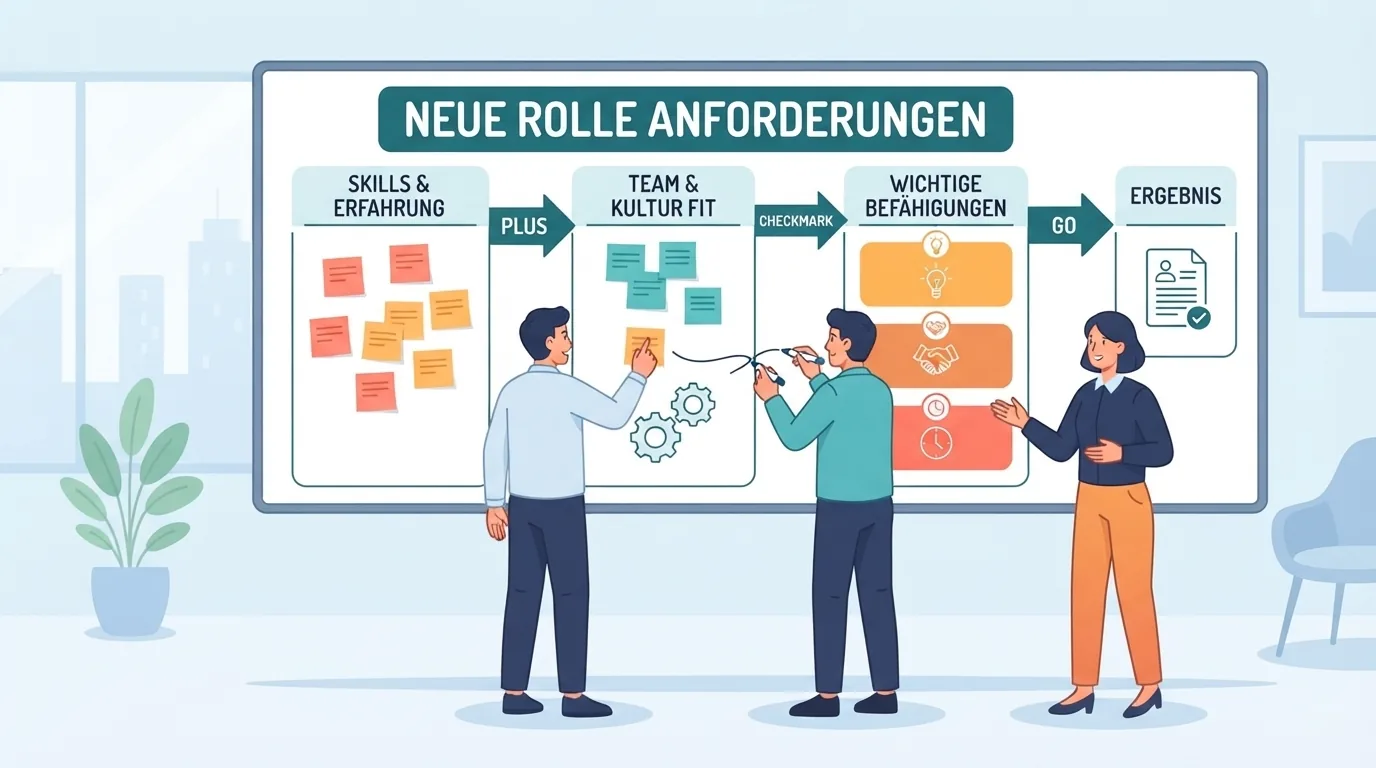
Define the role on paper first
- Write the three to five outcomes the person must deliver in their first six months.
- List must-have skills separately from nice-to-haves.
- Decide location or remote rules, employment type, and a pay range you can share.
- Name one hiring owner and one place where applicants will be reviewed, so nothing sits unread.
How to Post a Job on LinkedIn, Step by Step
- Start the post. Click the Jobs icon on your LinkedIn homepage, then choose Post a free job. If you do not see the free option, you may have hit a free-post limit or eligibility rule.
- Enter the job title. You can then let LinkedIn’s AI help draft the post or start from your own description. LinkedIn names Hiring Pro as the tool behind the drafting option.
- Complete the details. Add company, location, workplace type, employment type, and a description. Add skills if LinkedIn offers that field for your post.
- Set screening and rejection settings. Screening questions help you spot qualified applicants. Rejection settings can filter out and send rejections to people who do not give acceptable answers to your must-have questions.
- Choose how to publish. Pick Post without promoting for the free route, or Promote job to add a budget.
- Share it. Post the job to your own feed and ask colleagues to share it. A free post is also recommended to qualified candidates on LinkedIn, but your network adds reach that no setting can.
If a role closes and later reopens, you can repost it from Manage job posts by opening the Closed tab and choosing Repost. LinkedIn treats the repost as a new job, and applicants from the earlier post stay attached to the closed one.

Free vs Paid Job Posting Options
What a free post gives you
A free post is searchable on LinkedIn and is recommended to qualified candidates. It also comes with limits worth knowing before you rely on it:
- It stays active for up to 14 days, then pauses. If you do not promote it, it closes automatically after 30 days.
- You can have only one free post active at a time, with a cap on how many free posts you can create in a 30-day window.
- Free posts have an application limit that typically falls between 10 and 30, depending on the role. When it is reached, the post is paused and removed from search, and the only way to unpause it is to promote it.
- Visibility in search fades over time so newer posts get a turn.
What promotion adds
Promoting means setting a budget. Promoted posts can appear at the top of search results with a Promoted tag and can be pushed to local qualified candidates by mobile notification. LinkedIn states that promoted posts reach about three times more qualified applicants than free ones, which is LinkedIn’s own claim and will vary by role and market. Promoted posts run on a budget you control, and a post pauses once its budget is spent.
| Factor | Free post | Promoted post |
|---|---|---|
| Cost model | No cost, with eligibility limits | Budget-based; you set daily or total spend |
| Reach | Searchable and recommended to qualified candidates; visibility fades | Can rank higher in search with a Promoted tag and reach local candidates by notification |
| Applicant management | Application cap; pauses when reached | No free-post cap; pauses when budget is spent |
| Best for | One low-urgency role | Urgent, hard-to-fill, or multiple roles |
How to decide
Start free for one role that is not urgent and watch the applicant quality for a week. Consider promotion when a role is urgent, when the free post has hit its application cap, or when you are hiring for several roles at once. Set a total budget and a stop date before you publish so spending does not drift.
Writing a Job Post That Attracts Qualified Applicants
Use a plain, searchable title
Candidates search by common titles, so clever labels hide your post.
- Weak: Growth Ninja Rockstar Wanted
- Strong: Marketing Manager, B2B Software (Remote, US)
Open with the impact of the role
Two or three sentences on what the person will own and why it matters works better than a long company history.

Split requirements
- Essential: three to five items you will actually screen on.
- Preferred: skills that help but can be learned.
Long lists of inflated requirements tend to discourage strong candidates from applying while attracting people who ignore the list.
Be open about the practical details
- Pay range, location or remote policy, and employment type.
- The steps in your hiring process and a rough timeline.

🛒 Recommended Product
Free Ways to Source Candidates on LinkedIn
- Search with intent. Combine job titles, skills, and location, then refine with filters. Save the searches you reuse.
- Turn on the Hiring frame. From your profile, open the Open to menu and choose Hiring. LinkedIn says this adds a photo frame, lists the open position near the top of your profile, and notifies your network. Treat it as a small signal, not a strategy on its own.
- Post about the role. Explain what the job involves and ask your network for referrals. Tag people who may know someone suitable.
- Use your team. Ask colleagues to share the post and to name people they would happily work with again.
- Join relevant conversations. Thoughtful comments in industry groups and posts help candidates recognize you before you message them.
- Keep a shortlist. A simple spreadsheet with name, profile link, why they fit, date contacted, and status is enough to start.
Reaching Out to Candidates: Messages That Get Replies
A good outreach message is short, specific, and easy to answer. It contains three parts: a reason you picked this person, what the role offers, and a small next step.
Sample message
Hi Priya, I noticed your work leading onboarding projects at Brightline and thought of a Customer Success Manager role we are hiring for. The team is small, the role owns the whole onboarding experience, and it is fully remote. Would a 15-minute call this week be useful? If it is not the right time, no problem at all.

Follow-up
- Send one gentle follow-up after about a week if there is no reply.
- Keep the tone friendly and give a clear way to say no.
- Do not send the same text to everyone. Change the first line for each person.
Etiquette
Respect the way the platform is meant to be used: connect with a note about why, avoid pasting long pitches in connection requests, and stop after a polite no. LinkedIn’s limits on messages and connection requests vary by account and can change, so check them in your own account rather than relying on a number from a blog.
Comparing LinkedIn Hiring Products
Beyond the free post and promotion, LinkedIn sells several products. Names and packaging change, so treat this as a map and confirm details with LinkedIn before buying.
| Factor | Hiring Pro | Job Slots | Recruiter Lite | Recruiter + Hiring Assistant |
|---|---|---|---|---|
| Best for | Small businesses hiring occasionally, with no recruiter | Companies with open roles throughout the year | Individuals who hire less consistently | Teams that recruit regularly |
| Main strength | Help from job post to a shortlist of candidates | Pre-paid slots you can rotate jobs in and out of | Basic sourcing and messaging | Advanced search and an AI agent that supports sourcing and outreach |
| Sourcing depth | Light; LinkedIn does much of the matching | Low; focused on posting and applicants | Basic filters and limited InMail credits | 40+ advanced filters in Recruiter; Hiring Assistant is an add-on |
| Effort required | Low | Medium | Medium | Higher setup, then more automation |
| Pricing approach | Check LinkedIn | Contact sales | Check LinkedIn | Varies by seats and company; Hiring Assistant is quote-based |
About Hiring Assistant
Hiring Assistant is LinkedIn’s AI agent for recruiters. LinkedIn sells it as an add-on to Recruiter, and describes it as building a sourcing strategy from your goals and learning from your past Recruiter activity, with the recruiter staying in the loop. LinkedIn lists it in English, German, and French and has said more languages will arrive in 2026. LinkedIn also announced Hiring Assistant 2 on September 29, 2026, and has said it begins rolling out in November 2026, automatically and at no added cost, to existing English-language customers. Because results quoted by vendors are usually self-reported, judge it by a trial on one of your own roles.

Screening and Managing Applicants
- Set must-have questions. Use screening questions for true deal-breakers such as work authorization, location, or a required license. Keep nice-to-haves out of the filter.
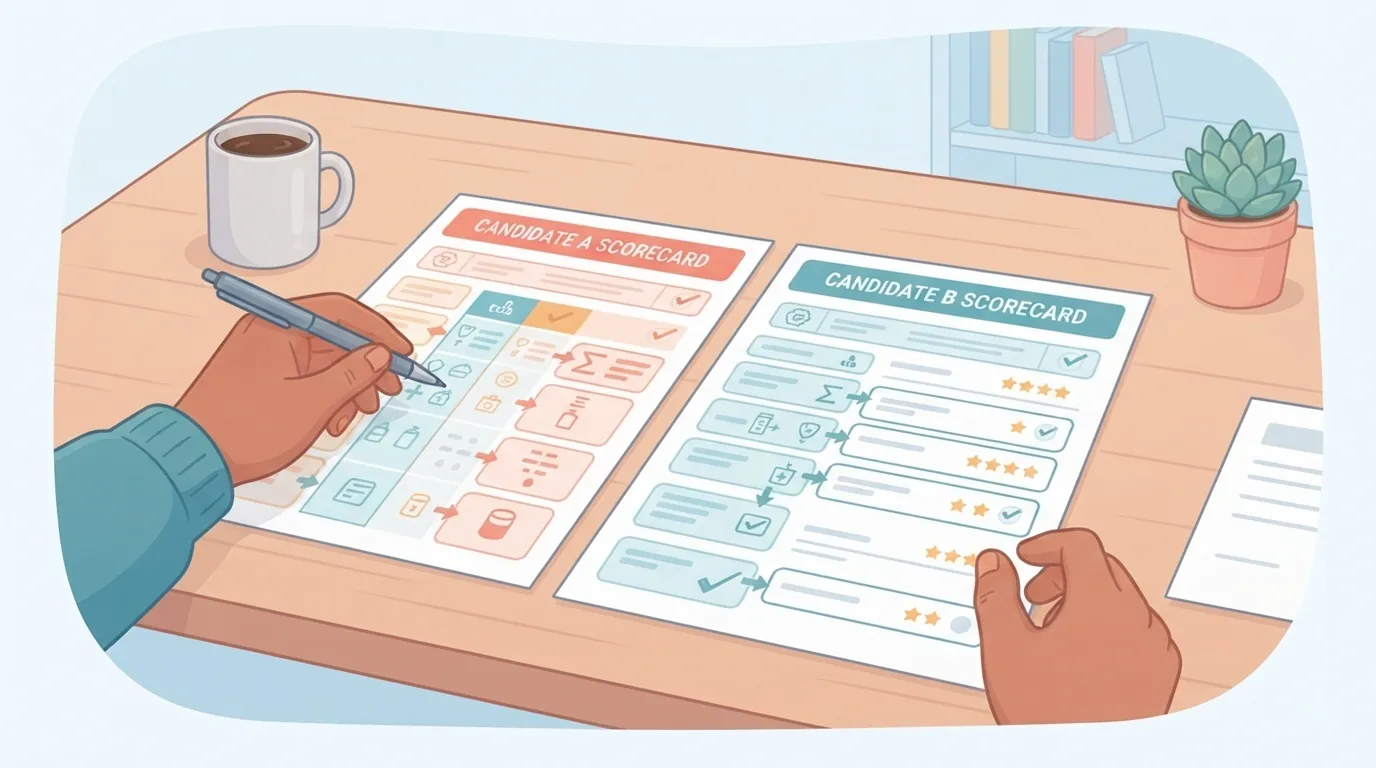
- Score consistently. Use the same one-to-five scale across three or four criteria, for example relevant experience, skills match, communication, and motivation. Write one line of evidence for each score.
- Reply fast. Send a short acknowledgment, and tell people when to expect news. A quick, honest no is better than silence.
- Move strong candidates into a tracker. Keep notes, stages, and dates in a spreadsheet or applicant tracking system so nothing depends on one inbox.
Common LinkedIn Hiring Mistakes to Avoid
- Vague titles and inflated requirements. They hurt search visibility and discourage strong applicants.
- Generic outreach. A message that could be sent to anyone is easy to ignore.
- Ignoring passive candidates. Many good people are not applying anywhere but will talk about the right role.
- Slow replies. Candidates who wait weeks often take other offers.
- An incomplete company Page. A missing description or stale updates make the company look inactive.
- Paying before the process exists. Without a defined role, scorecard, and owner, extra reach just produces more unsorted applicants.
- Relying on a free post that has quietly paused. Check that the post is still live, especially after a burst of applications.
LinkedIn Hiring Checklist
Before posting
- ☐ Company Page is complete and current.
- ☐ Role outcomes, essential skills, and pay range are written down.
- ☐ One hiring owner and one review location are named.

During the search
- ☐ Job title is plain and searchable.
- ☐ Screening questions cover only the real must-haves.
- ☐ The post is shared on your own feed and by teammates.
- ☐ Outreach messages are personalized and a shortlist is being tracked.
After applications arrive
- ☐ Every applicant is scored on the same scorecard.
- ☐ Candidates get a reply within a few days.
- ☐ Strong candidates are moved into your tracker, and the post is checked to confirm it is still active.
Frequently Asked Questions
Is it free to hire on LinkedIn?
Yes, within limits. You can post one free job at a time from your company Page, and you can search for and message people at no cost within the limits of a free account. Paid products add reach, filters, and automation.

How long does a job post stay active?
A free post stays active for up to 14 days and then pauses. If you do not promote it, it closes automatically after 30 days. Promoted posts run until you close them or the budget is used up.
Do I need Recruiter to source candidates?
No. You can search profiles, post about the role, and message people without it. Recruiter adds advanced search filters, team features, and the option to add Hiring Assistant, which makes more sense for regular or high-volume hiring.
How do I get more qualified applicants?
Use a plain job title, split essential from preferred requirements, share pay and location, add screening questions for true must-haves, and share the post through your network. Promotion can add reach if quality is fine but volume is low.
Can small businesses and solo founders hire effectively on LinkedIn?
Yes. A complete company Page, a clear free post, direct outreach, and a simple tracker go a long way. LinkedIn also offers Hiring Pro for small businesses that hire occasionally and have no recruiter.
Conclusion
Hiring on LinkedIn works best as a simple sequence: define the role, post it clearly, source actively, reach out personally, and add tools only when your volume justifies them. Start with a free post, learn what your market responds to, and let that guide whether promotion, Hiring Pro, Job Slots, or Recruiter earns a place in your process.
Take your current job post and check it against the checklist above. Fix the title, the requirements, and the screening questions first.
References
- LinkedIn Help: Post a free job on LinkedIn
- LinkedIn Help: Post a free job (AI drafting flow)
- LinkedIn: Job posting cost overview
- LinkedIn Help: Repost a closed or expired job
- LinkedIn: Post a job (including Hiring Pro)
- LinkedIn: Job Slots
- LinkedIn: Recruiter overview
- LinkedIn: Hiring Assistant
- HR Briefing: LinkedIn Hiring Assistant 2 rollout
- LinkedIn Nonprofit: Tips for hiring on LinkedIn (Hiring frame)
Want more comparisons and buying guides?